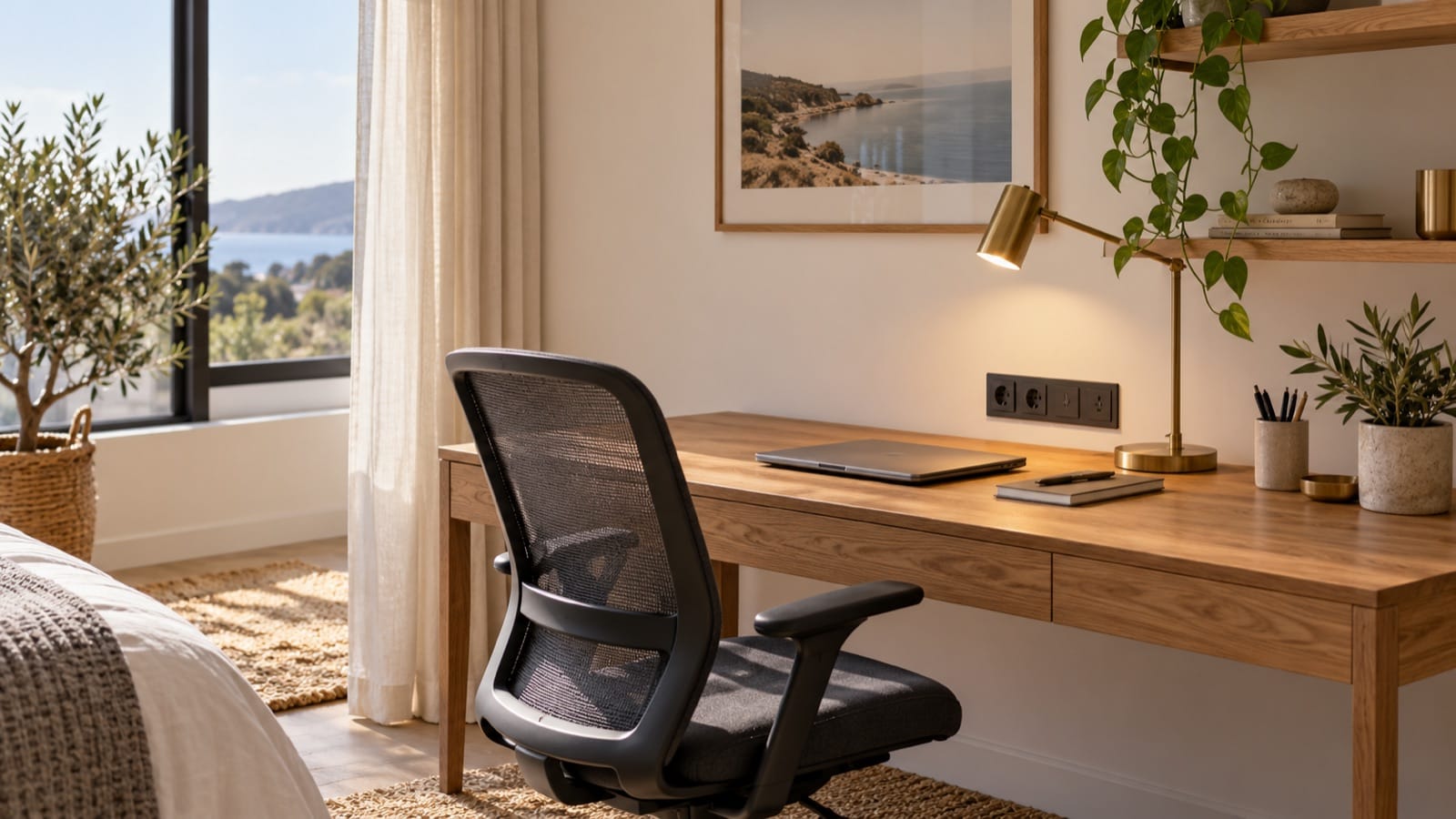
A work-friendly Airbnb needs a usable place to sit, a connection that works where the desk is, and an honest description of the setup. A laptop photographed on a dining table does not tell a guest whether they can complete a full working day there.
This guide is for hosts preparing a rental for guests who work during their stay. It covers the physical workspace, checks to make before arrival, and the information those guests need in the welcome guide.
Test the actual working position
Sit at the desk with a laptop and its charger. Check legroom, surface depth, chair comfort, lighting, and whether the outlet is reachable. If the guest must move a lamp or unplug another appliance to work, improve the setup or describe the limitation.
- Show the desk or table in a normal room photograph.
- State whether it is dedicated to working or shared with dining.
- Explain whether the chair adjusts, without calling every chair ergonomic.
- Check glare at different times of day.
- Identify the outlet and any supplied accessories.
- Note whether a door separates the workspace from shared living areas.
Airbnb's remote-worker guidance discusses a desk or table, comfortable seating, power access, and reliable Wi-Fi. Describe the specific setup you offer rather than relying on a broad “business-ready” label.
Check Wi-Fi from the desk
A test beside the router may not represent the work area. Join the guest network from the intended position and check normal internet use. If you share measured speeds, record where and when you tested; one result is not a guarantee of uninterrupted service.
Be transparent about known coverage gaps and shared connections. Avoid promising that every video call will work perfectly. If the connection fails, guests need a contact and an update, not a request to reconfigure the router.
Workspace and connection notes
Your workspace is [room/location]. The [desk/table] is [dedicated/shared]. Power is [location]. We provide [actual accessories]. The guest Wi-Fi details are [private guide location]. If you cannot connect, message [host/method] and tell us whether the network is missing, rejects the password, or connects without internet.
Describe sound and privacy accurately
Tell guests whether the desk is in a bedroom, living room, or shared space. Explain relevant features such as a door, nearby street activity, or an adjoining common area. Avoid calling the property silent when you cannot control neighbourhood noise.
If two people may work at once, describe the second usable location and its limits. Two chairs at one small table may be adequate for email, but awkward for simultaneous calls. Guests can make that decision when the listing gives them the facts.
Make longer working stays practical
Include laundry, storage, groceries, and the supplies arrangement in the guide. A guest staying for several weeks needs ordinary living information as well as tourist recommendations. Our longer-stay guide covers those routines.
If you recommend an external workspace, check its address, current access terms, and whether booking is needed. Do not imply that a nearby café permits all-day calls simply because it has tables.
Run a short pre-arrival check
- Clear and clean the work surface.
- Test the light and guest network at that position.
- Check that promised accessories are present and work.
- Confirm the guide's credentials and support contact are current.
- Tell the guest about any material change to the advertised setup.
Keep the Wi-Fi help instructions available in a printed essentials page as well as online. An internet-only help page is hard to reach during an outage.
What matters more than extra gadgets?
Accurate expectations and a comfortable basic setup. A monitor is useful only if the guest knows its connections and availability. Start with the desk, chair, power, light, connection, and help route before adding equipment you cannot maintain.
Make the working setup clear before arrival. Build your welcome-book preview and add verified workspace details alongside the home's everyday essentials.