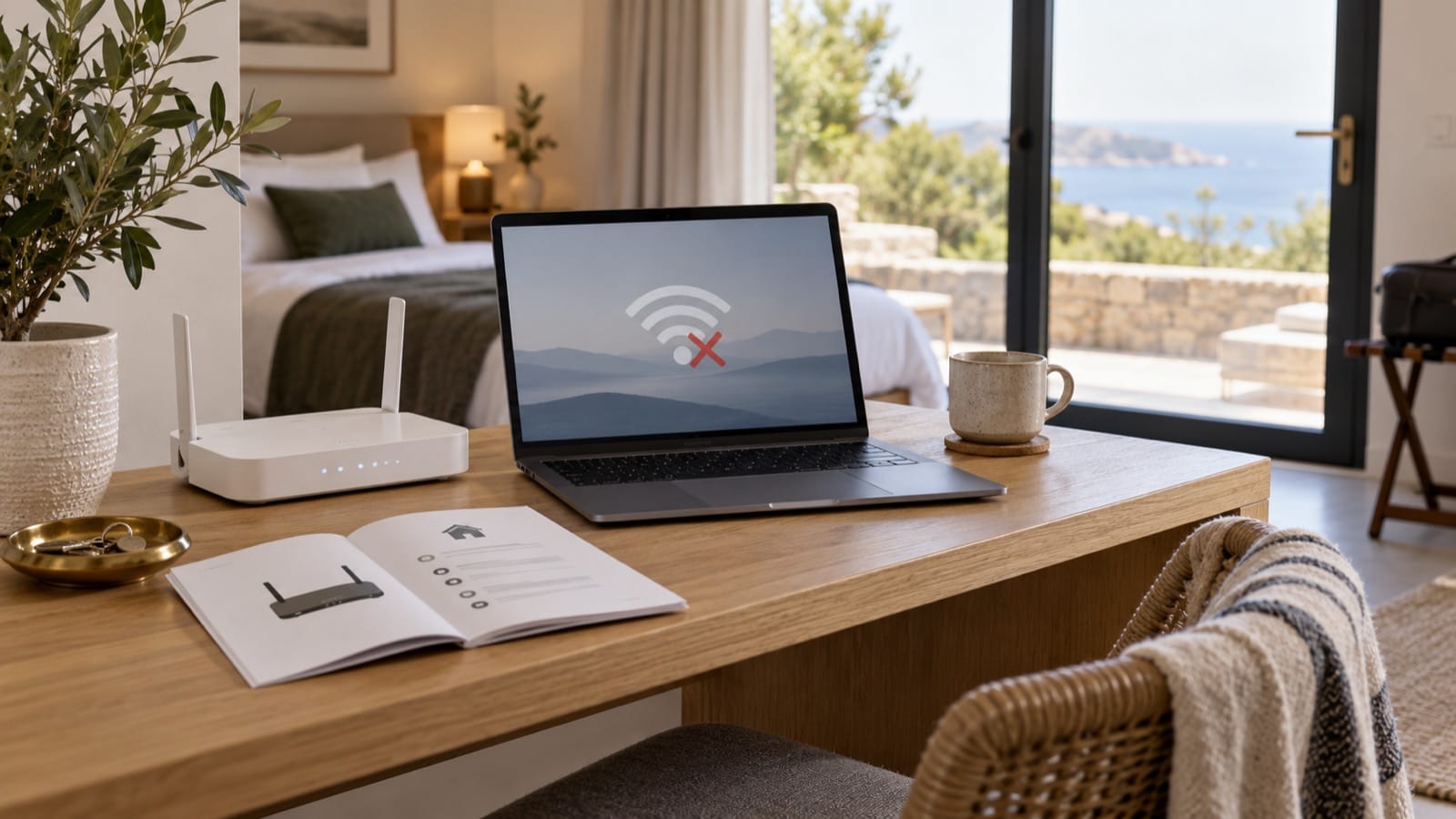
If Airbnb Wi-Fi is not working, first distinguish three situations: the guest cannot see the network, cannot join it, or joins successfully but cannot reach the internet. That distinction helps the host choose a useful next step without sending a long list of random fixes.
Keep the guest's version short and make the host contact easy to find. Router administration and service-provider calls belong with the person managing the property, not with someone who has just arrived.
Ask which part is failing
| What the guest sees | Useful first question | Host follow-up |
|---|---|---|
| Network missing | Are you near the normal connection area? | Check power and whether the guest network is available |
| Password rejected | Which network name are you selecting? | Verify the current credentials and guide |
| Connected, no internet | Does another device have the same problem? | Check the connection and service-provider status |
A second device helps separate a single-device problem from a wider outage, but do not require guests to own one. Ask for the error wording or a screenshot that does not expose personal information.
Give guests a small set of basic checks
- Open the device's Wi-Fi settings and select the exact guest network shown in the guide.
- Check that the password matches the current written credentials, including capitals and spaces.
- Move closer to the usual connection area if the signal is weak.
- If appropriate for the device, turn Wi-Fi off and back on, then try again.
- Tell the host what happened and whether the problem affects another device.
Apple's iPhone and iPad Wi-Fi troubleshooting guidance includes checking the network, signal range, and connection details. Device menus vary. The guest should use their device maker's current instructions for more involved changes.
A Wi-Fi help card template
Having trouble connecting?
Network: [exact guest network].
Password: [current guest password].
Please select that network in your Wi-Fi settings and try near [normal connection area]. If you can connect but pages do not load, tell us that detail.Message [host/method] with the network name, error wording, and whether another device has the same issue. Please do not change router settings or press a reset button.
What the host should check
Verify the credentials against the router's current guest-network configuration. Check whether the equipment has power and whether the provider reports an outage. Use the installed model's instructions for any restart, and consider whether it also supports locks, cameras, or other property systems.
A restart and a factory reset are different operations. Do not direct a guest to press an unidentified reset control or change admin settings. If access to the equipment is needed, arrange it rather than asking someone to move heavy furniture or enter a restricted cupboard.
Keep the update practical
Thanks for the details. I have confirmed [what is known]. I am [specific action] and will update you by [time]. [Verified temporary option, if available.] Please let me know if your device's connection changes before then.
Do not promise a repair time until it is confirmed. Explain any verified alternative honestly, including limitations. Decisions about a booking remedy depend on the circumstances and current platform process; this troubleshooting guide does not establish an automatic refund rule.
Prevent the same issue next turnover
Join the guest network and load a page during the property check. Update every written password after a change, including any Wi-Fi QR code. A working router does not help when the printed guide points guests to an old network.
Make connection details easy to find. Build your welcome-book preview with Wi-Fi credentials and a clear route to host help.