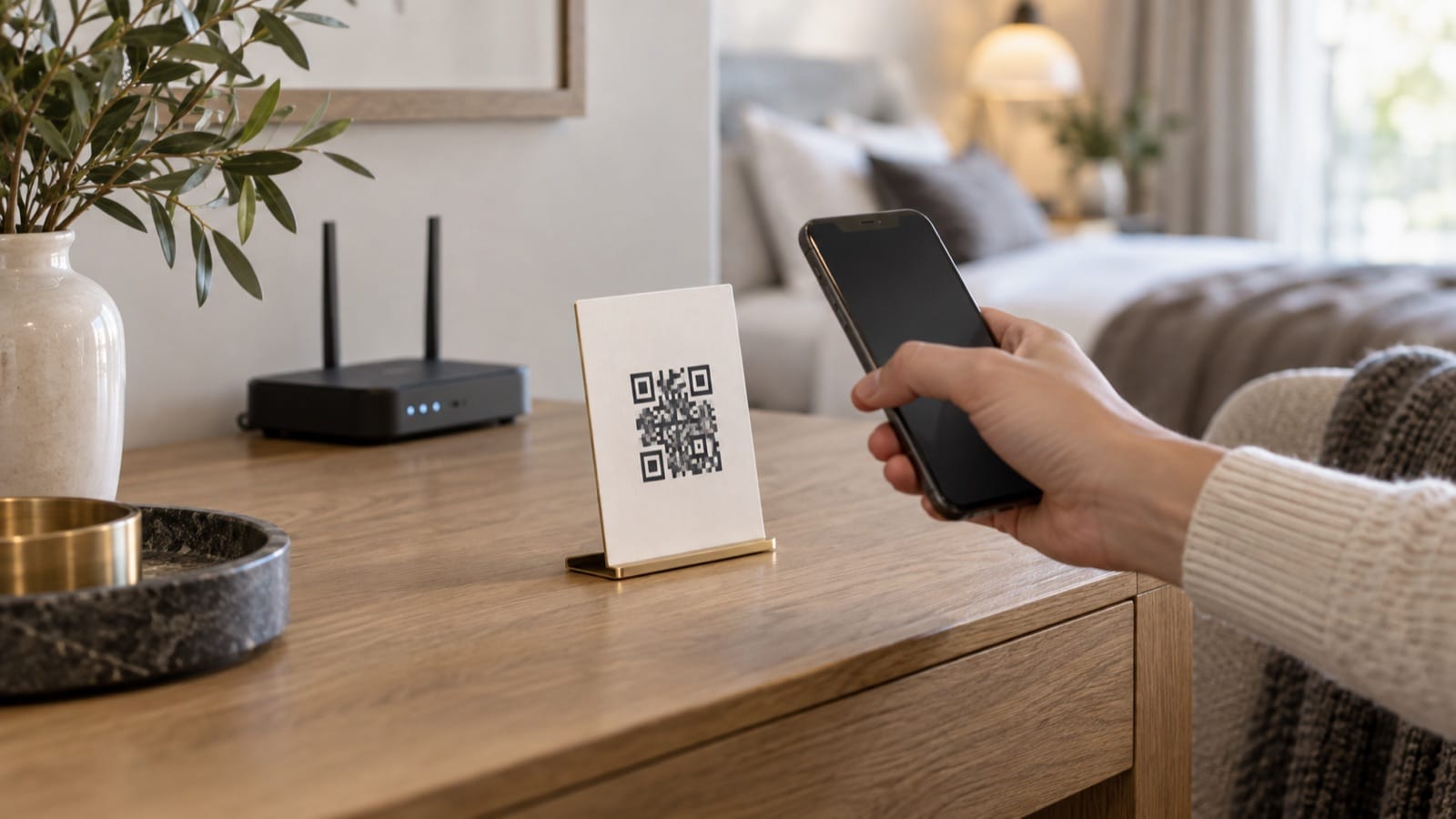
An Airbnb Wi-Fi QR code lets guests join your network without typing a long password. Put it where they naturally pause after arrival, and keep the network name and password beside it for anyone connecting a laptop or using a phone that cannot scan it.
The setup is simple: create a guest network, generate a code from its exact details, test the printed version, and add the same information to your welcome book. A decorative card is useful only if the connection actually works.
How to create a Wi-Fi QR code for your Airbnb
- Confirm the guest network. Check the network name in your router settings. Use a separate guest network if your router supports one, and enable isolation from your private devices where available.
- Copy the details exactly. Network names and passwords can be case-sensitive. A space or an extra character can make the code fail.
- Generate the code. Use our free Wi-Fi QR code generator. Enter the network name, password, security type, and whether the network is hidden.
- Download the PNG. Keep the original sharp image rather than taking a screenshot of a screenshot.
- Test before displaying it. Scan the actual printed card with a device that is not already connected. Confirm the correct network appears and that a web page loads.
A Wi-Fi card template you can copy
Make yourself at home. Here is the Wi-Fi.
Network: [guest network name]
Password: [guest password]
Scan the code to connect on a supported phone, or enter the details above.
If you cannot get online, message [host/contact] through [contact method].
Use readable type and strong contrast. Leave the code's clear border intact and avoid stretching it. A plain black code on white is usually easier to scan than a decorative pattern over a photograph. Keep both the card and the code large enough to read without picking up a tiny frame.
Where should the Wi-Fi card go?
Choose one obvious place: the entry table, living-room shelf, or desk. If your home has several floors, a second card near the workspace can help. Avoid putting the only copy inside a drawer or behind a television.
Include the details in the essentials section of your guest welcome book, too. A QR code displayed on a guest's phone is awkward to scan with that same phone. The written password solves that problem, and it also helps guests using devices without cameras.
What to check when a code will not connect
- Wrong credentials: regenerate after any password or network-name change.
- Wrong security setting: match the generator's selection to the network configuration.
- Print quality: try a sharp, larger print without glare from the frame.
- Network coverage: test from the place where you display the card, rather than beside the router.
- Device compatibility: offer manual connection steps if scanning does not open a connection prompt.
A successful scan does not prove the internet is working. During each turnover, join the guest network and open a page. Add that step to your turnover checklist.
Keep the code inside the guest experience
A Wi-Fi QR code contains the network credentials; it does not hide or encrypt them for the person scanning it. Avoid including your real code in public listing photos, marketing images, or publicly downloadable sample guides. The generated feature image for this article is illustrative and is not a working connection code.
Does a Wi-Fi QR code need an app?
Many current phones can interpret Wi-Fi codes using their camera or built-in scanning tools. Support varies by device. Keep the written credentials visible so the guest always has another route.
Reference: The Check-in Guide Wi-Fi generator and its setup instructions.
Put the essentials in one place. Build your welcome-book preview with Wi-Fi details, arrival information, home instructions, and your local recommendations.